 HolySnap
Install HolySnap, open the page and press Alt Shift L (Option Shift L on a Mac). You get the whole page as one sharp image, ready to copy or save as PNG or PDF.
Way 1: One click with HolySnap Fastest
HolySnap is a Chrome extension built for exactly this. It goes through the page for you and hands back one clean image of the whole thing — no stitching, no cropping.
- Add HolySnap to ChromeIt's free to start: 10 full-page captures, no account, no card.
- Open the page you want to captureAny regular website — an article, a doc, a dashboard, a long feed.
- Click the HolySnap icon and choose Full pageOr skip the menu and press Alt Shift L (Option Shift L on a Mac).
- Check the preview, then keep itCopy the image straight into a doc or chat, or download it as PNG or PDF.
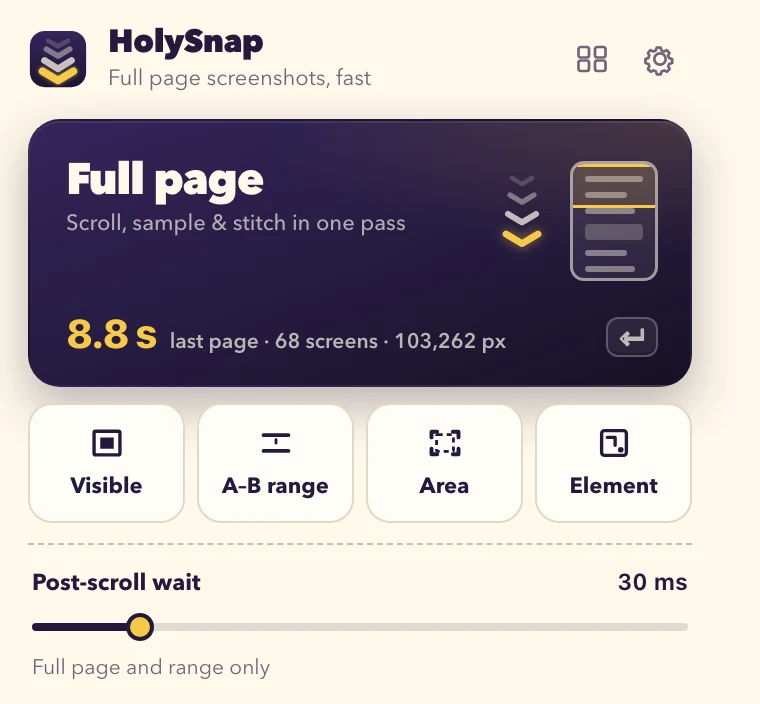
On our 68-screen test page, HolySnap finished in 8.8 seconds. Sticky headers and menus show up once instead of on every screen, and the image is saved at your display's full sharpness.
chrome://extensions/shortcuts and set your own.Way 2: Chrome's built-in DevTools command No install
Chrome can capture a full page on its own — the option is just tucked away in the developer tools.
- Open DevToolsPress Ctrl Shift I on Windows or Cmd Option I on a Mac.
- Open the command menuPress Ctrl Shift P (Cmd Shift P on a Mac).
- Type “screenshot”Choose Capture full size screenshot. Chrome downloads a PNG.
It works well for simple pages. The catches: it's several steps every time, there's no preview or PDF, you can't pick a range, and conversations that scroll inside a panel — like chat apps — come out as just the visible part. Images that only load as you scroll can also be missing.
Way 3: Scroll, screenshot, stitch (by hand)
The old way: take a screenshot, scroll, take another, and line them all up in an image editor. It works on any computer, but a long page means dozens of screenshots, overlapping edges and repeated headers to clean up — easily 10–20 minutes for a single page.
Which way should you use?
| HolySnap | DevTools command | By hand | |
|---|---|---|---|
| Steps each time | 1 click or shortcut | 3–4 | Dozens |
| Long chats & scrolling panels | ✓ Whole thread | ✕ Visible part only | Painful |
| Just part of a page (A to B) | ✓ | ✕ | Crop by hand |
| Copy, PNG or PDF | ✓ All three | PNG download | Depends on editor |
| Cost | Free to start | Free | Free (your time) |
For a one-off simple page, the DevTools command is fine. If you capture pages regularly — or the page has a chat, a sidebar that scrolls, or you only need a section — HolySnap saves real time.
Questions
Does Chrome have a built-in full page screenshot?
Yes, but it's hidden: open DevTools, open the command menu and run “Capture full size screenshot”. It's free and needs no install, but it takes several steps and doesn't expand chats or other scrolling panels.
Is HolySnap free?
Visible area, Select area and Select element captures are free forever. Full page and A–B range captures are free for 10 captures with no time limit; after that, HolySnap Pro unlocks them without limits.
Will the screenshot be blurry?
No. HolySnap saves the page at your display's full sharpness — on a Retina or high-resolution screen that means a crisp, high-resolution image.
Can I capture pages that are very long?
Yes. Even pages 100,000 pixels tall come out as one clean image.